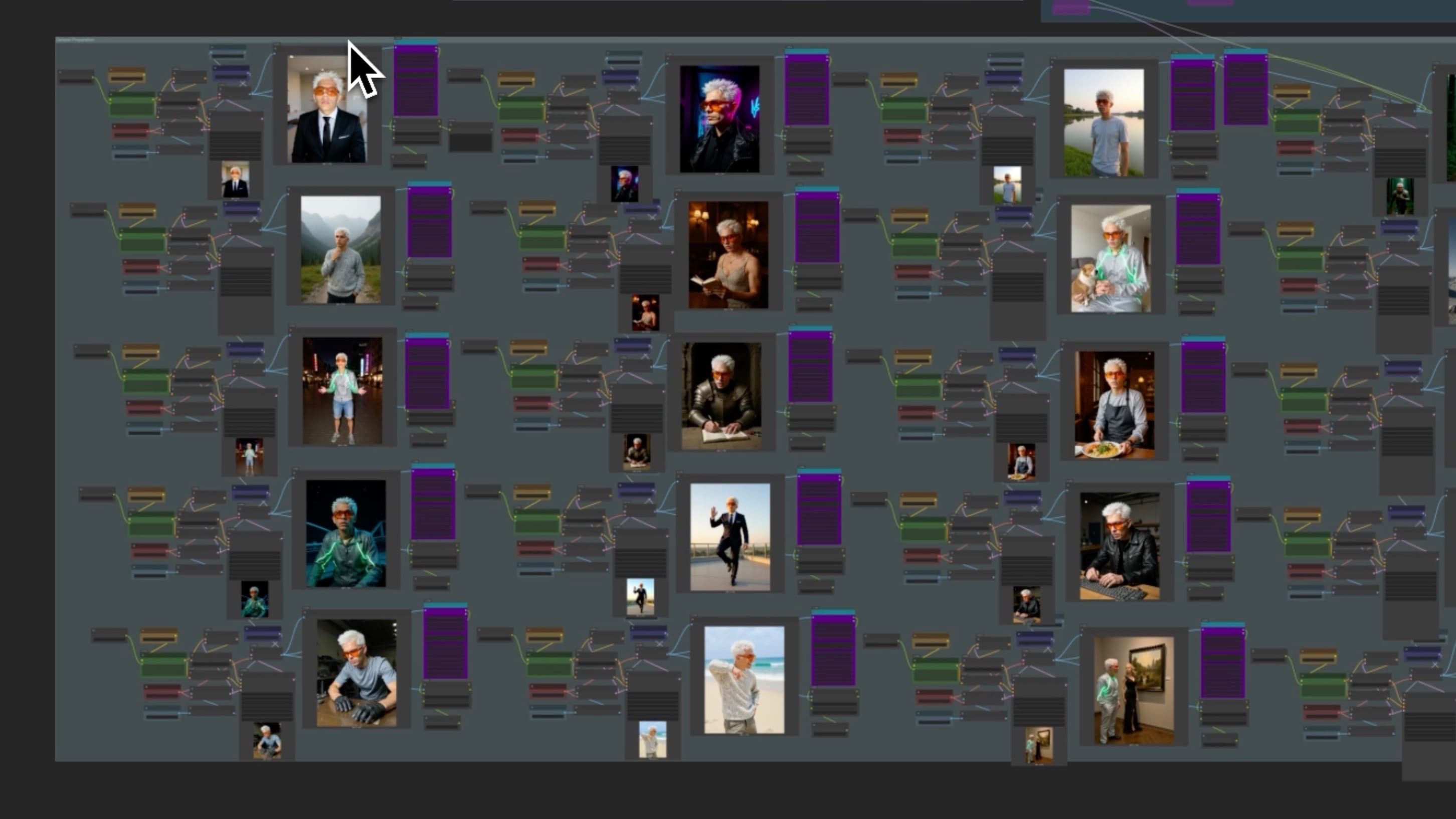
Image to LoRA Workflow
This workflow lets you turn a single reference image into a fully-trained, consistent AI character using FLUX.1 and ComfyUI.
1. Prompt Generation
Gemini analyzes your reference image and generates 20 diverse text prompts using advanced LLM inference.
2. Image Generation
FLUX.1 Kontext model takes those prompts and produces 20 consistent visual variations of your image.
3. Dataset Creation
All generated images are automatically saved, each with an associated caption file—ready for training.
4. LoRA Training
Train your custom LoRA directly within ComfyUI using the integrated pipeline.
Custom Nodes
via ComfyUI Manager:
ComfyUI-FluxTrainerComfyUI-SP-NodesComfyUI-Custom-ScriptsWAS Node SuiteComfyUI_Fill-NodesComfyUI-Impact-PackComfyUI-KJNodescomfyui_tinyterranodes
Models
Main Model:
FLUX.1 Kontext(flux1-dev-kontext_fp8_scaled.safetensors)VAE:
FLUX VAE(ae.safetensors)Encoders:
FLUX CLIP(clip_l.safetensors,t5xxl_fp8_e4m3fn_scaled.safetensors)Training Models:
flux1-dev.safetensors,t5xxl_fp16.safetensors
Setup Instructions
Load the
workflow.jsonfile in ComfyUIUpload your reference image
Input your Gemini API key
Configure the following parameters:
Trigger Word: Unique identifier for your LoRA
Folder Name: Directory to save your dataset and LoRA
Output Path: ComfyUI output directory
Run the Workflow
Your trained LoRA will be saved automatically in the folder you specified.
Created by Levis Odin