
TL;DR
A Stan Store coaching call lets your audience book time directly with you—synced to your calendar, hosted on Zoom or Google Meet, with automatic confirmations and reminders. To set one up, connect your Google Calendar and Zoom under Integrations, add a Coaching Call product from your My Store tab, style your thumbnail and checkout page, then set your availability: the call duration, buffers, booking window, and open days. Personalize your confirmation email and reminders, hit Publish, and test it yourself. That’s it—your calendar’s open and ready to fill with high-value 1:1 clients.
There’s a ceiling on what you can charge for a digital product. A download, a course, a webinar are incredible at teaching a specific topic to a broad audience. But because everyone gets the same thing, there’s a limit to how much you can teach (and what people will pay).
Coaching breaks through that ceiling. When someone books a 1:1 call, they’re not paying for information they could find in a course—they’re paying for you. Your attention on their specific situation and questions. That individualized support is typically worth more than a pre-built digital product—which is why it’s one of the most profitable offers you can add to your Stan Store.
If coaching has been on your mind, consider this your sign to build it. In this lesson, I’ll walk you through how to set up a Stan Store coaching call, connect your calendar so nothing double-books, and configure your availability so you’re never scrambling for a last-minute session.
If you’re new here, I’m Professor T 👋 I teach Creator-Entrepreneurs how to build a real business on Stan Store—the all-in-one platform you can use to sell products, courses, communities, and book calls straight from your social profile without separate tools, a scheduling app, or booking software. Stan Creators have earned over $600M so far, and I’m here to help you become one of them.
In this lesson, we’ll cover:
💜 What a Stan Store coaching call is and why the calendar sync matters
💜 How to connect Google Calendar and Zoom before you start
💜 Where to add a coaching call to your Stan Store
💜 How to set your availability so you never overbook or double-book
💜 What the whole experience looks like from your customer’s point of view
Let’s get into it.
Prefer to watch and follow along? Check out the full lesson right here or get access to more tutorials inside Stan’s Success tab 👇
What Makes a Coaching Call Different From Other Offers
Most of what you sell on Stan Store is a product a customer buys and gets access to instantly. Coaching calls are different. You’re not selling a file—you’re selling your time in 1:1 live sessions.
It’s the highest-touch, most personal thing you can sell. And it tends to command a premium price, because your customer is paying for direct access to you. Many Creators have built 6- and 7-figure empires entirely on coaching sessions alone.
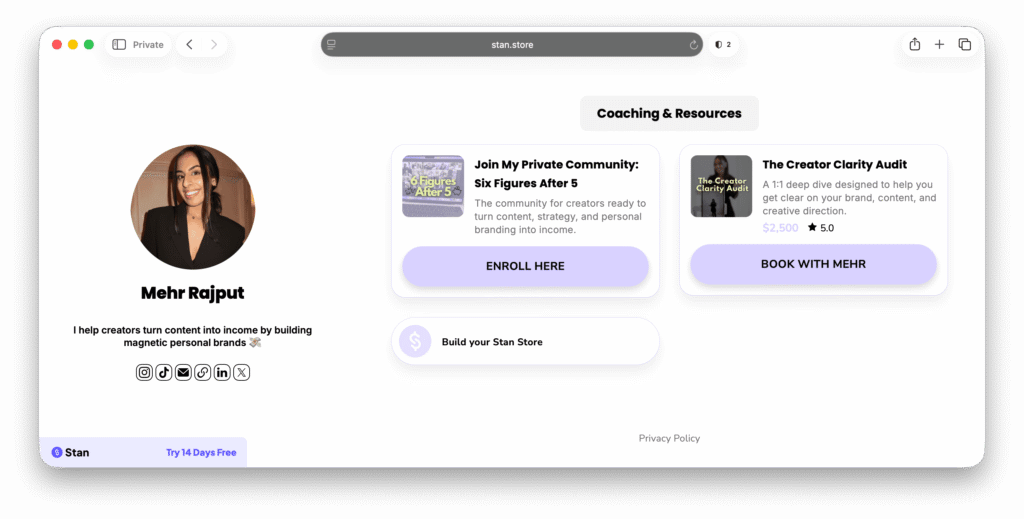
But unlike selling digital products or online courses, where you have infinite supply to meet demand, your time is limited. To build an online coaching business, you need to get clear on:
- What your time is worth and how much your ideal clients pay for it
- Whether you want to host 1:1 coaching calls or group sessions
- The specific focus areas you can help clients with and recurring themes your audience struggles with
This will help you create a coaching offer that matches your client goals. But having a clearly defined offer is just the beginning.
To seamlessly sell coaching calls, you need a calendar, a video link, availability windows, and email reminders—because a booking that gets forgotten or double-booked isn’t just a bad client experience. It’s your reputation on the line.
That’s why most Creators use a tool like Stan Store to book more coaching clients. Once you connect your calendar and Zoom, your Stan Store knows when you’re free, blocks off when you’re not, creates meeting links automatically, and sends your customers a nudge before the call so they show up prepared and on time.
Here’s how to set yours up right.
How to Set Up a Coaching Call in Stan Store
Before we get started, make sure you’re signed into your Stan Store account so you can follow along. There’s a little more configuration here than a standard digital product, but I’ll walk you through every step.

Step 1: Connect Your Google Calendar and Zoom Account
Before you build anything, we’ve got to make sure everything is connected. Head to Settings in the bottom left corner, then click over to Integrations.
This is where you’ll connect your Google Calendar and your Zoom account. Go ahead and connect both to keep things frictionless for your customers, no matter what’s in their tech stack.
Once you’ve connected your calendar and Zoom account, you should see them listed here. If at any point you need to disconnect or swap accounts, you can revisit this page to reconfigure your setup.
Step 2: Add the Coaching Call Product to Your Stan Store
Now head to your My Store tab and scroll down to the Add Product button. You’ll see the full lineup of product types—choose Coaching Call (the one with the Google Calendar icon).
If you’ve set up any other Stan Store product, the next part will feel familiar. The thumbnail and checkout page editors work the same way across every Stan product type.
Choose Your Thumbnail
Pick your style—Button, Callout, or Preview. I recommend basing this on how many other products and links already live on your storefront. If you’ve already got a lot of offers, consider choosing a style that doesn’t take up too much space on the page.
Next, choose your image and write your text. Keep everything on this page tied directly to what the coaching call offers: a strong photo, clear title, and description that tells your customer exactly what they’re signing up for.
Customize Your Checkout Page
This is where the real selling happens. By the time someone clicks into your checkout page, they’re already interested in your offer—you just need to close the deal.
Pick a strong banner image, then write a title, description, and body that make a case for why someone should book a call with you. Set your bottom title, your call-to-action button, and your price.
Then, think about what additional information you want to collect. Since this is a coaching call, I recommend adding a custom field or two—like a text field asking about their specific goals or the areas they want to grow in, so you have a better starting point and can make the most of your time on the call.
Mark it as Required if you want to guarantee that they share that information before the call.
When your checkout page looks the way you want, press Next.
Pro Tip: The more you learn at checkout, the more productive your call will be. If a customer tells you upfront exactly what they’re stuck on, you can walk in prepared instead of spending the first ten minutes catching up on the basics. That prep is what turns a good call into an impactful one.
Step 3: Set Your Availability
Unlike digital downloads or other offers in your Stan Store, coaching is an exchange of time. The more availability you offer, the less time you’ll have to focus on other areas of your business—so it’s worth configuring your calendar carefully so you don’t stretch yourself too thin.
Here’s where to start.
Pick Your Meeting Type and Time Zone
First, choose whether your calls will run on Zoom or Google Meet. Choose whichever fits you and your customers best.

Next, set your time zone. Stan pulls yours automatically, but if you know most of your customers are in a different one, I’d recommend switching to match theirs so nobody misreads a start time and misses the call.
Heads up! Because your Google Calendar is connected, Stan will automatically review the time blocks on your Google Calendar. So if you’ve got 3:00 to 5:00 p.m. blocked off as personal time, Stan won’t let a customer book on top of it—so that no double-bookings slip through the cracks.
Set Your Duration and Booking Buffer
Duration is the length of time a coaching call is for—you can choose anywhere from 15 minutes to 8 hours. I recommend setting your standard 1:1 coaching call to 30 minutes or one hour, which gives you plenty of time to deliver real value.
If you want to offer multiple types of coaching, you can add multiple coaching products to your Stan Store with different durations. For example, you might sell 30-minute calls as your entry point, 2-hour coaching calls as your mid-tier offer, and an 8-hour call as your high-ticket offer.
Next, set up how far in advance a call has to be booked. Trust me—you’ll want to give yourself a buffer between booking a call and taking it.
Picture this: You’re about to clock off at 5:00pm on Friday, but then someone books a 5:30 slot at the last second. And now, you’re scrambling to prep or cancel. It’s not an ideal experience for you or your customer, so I recommend giving yourself at least a 24-hour buffer to get ready.
Set Attendees and Breaks Between Calls
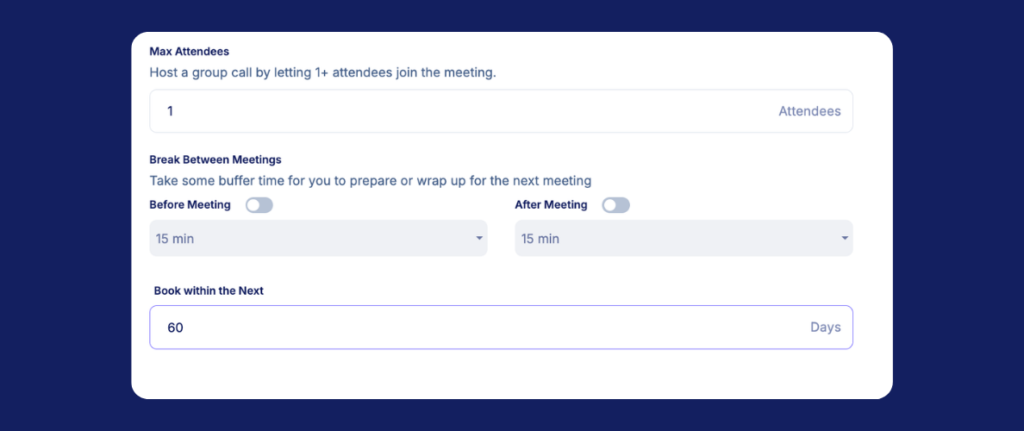
Before you start selling coaching on Stan Store, you need to set attendee limits. The minimum is one by default, but if a client wants to bring a partner or a teammate, you can bump the attendee count to two, three, four—whatever you’re comfortable with. Setting a limit gives everyone clarity as they go through your booking flow on whether your coaching is designed to be a group call or solely 1:1.
Next, let’s tailor breaks between meetings to match your work style. If you can’t run calls back-to-back for hours (or just don’t want to), you can simply toggle on before meeting, after meeting, or both, then customize how much buffer time you want in between meetings from the dropdown.
I recommend setting up at least a 15-minute after-meeting buffer, so if a call ends at 9:30, the next one can’t start until 9:45. That window is your time to breathe, gather your thoughts, or jot down notes from the call you just wrapped.
Set Your Booking Window and Open Days
Now, let’s customize how far ahead customers can see your calendar and book calls. 60 days is usually the sweet spot—giving you enough time to block off last-minute trips or time off. You can always open the booking wider if you want to fill your calendar further in advance.
Select which days of the week you’re available for calls and choose a time frame for each one. Remember: these times reflect whichever time zone you set earlier.
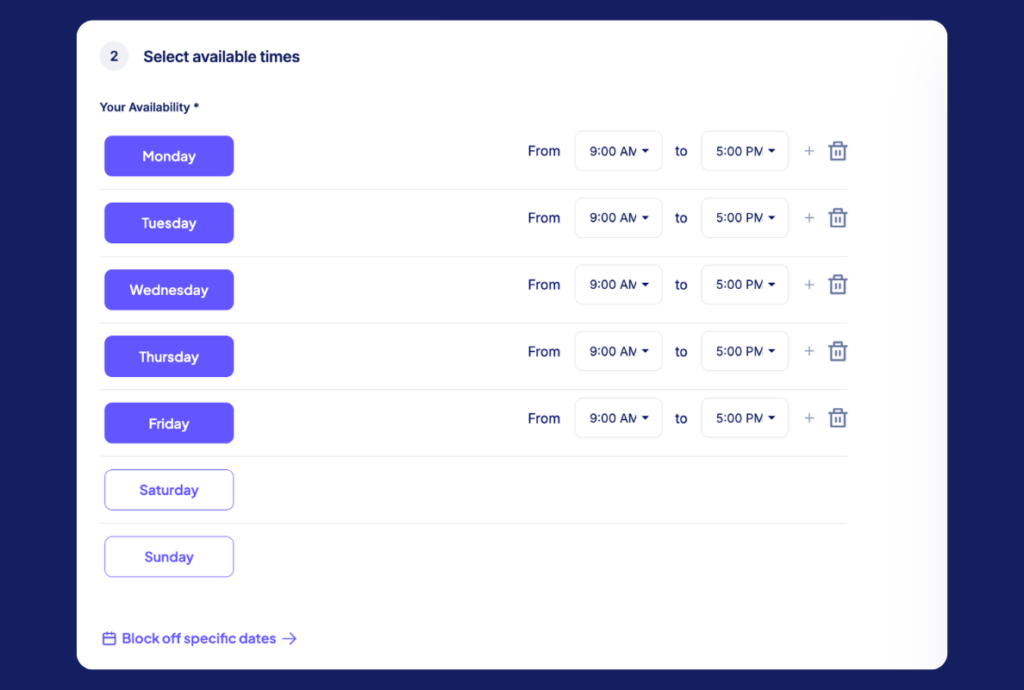
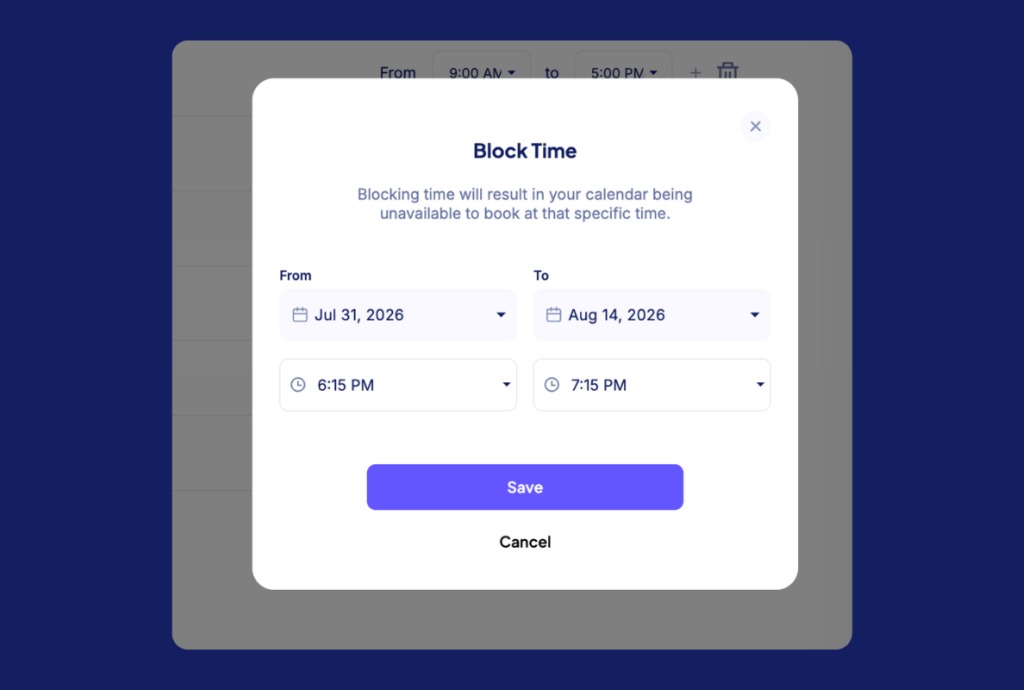
Finally, block off specific dates. Open the calendar and click the dates or times you want closed so they’re marked as unavailable. You’ll also notice some unavailable blocks already showing up here—those are pulled straight from your Google Calendar, so anything you’ve marked there is automatically off the table for new bookings.
Step 4: Personalize Your Confirmation Email and Reminders
Once your availability is set, don’t hit publish just yet. Scroll back to the top and click Options—there are two things left to configure.
Set Up Your Confirmation Email
First, your confirmation email. This is the first point of contact your customer gets after booking, so make sure the subject line and body say exactly what you want.

Anywhere you see a purple field, that’s a personalization tag—it auto-pulls live info like your username, your customer’s name, the product name, and the meeting time based on the slot they picked.
I’d strongly recommend always keeping the meeting time in this email, so your customer knows exactly when they’re booked with you and doesn’t accidentally miss it.
Turn On Reminders
Next, you’ll want to enable reminders. You don’t have to send one, but I highly recommend it. People will usually book a call a week out or longer, so it’s good to have an email marketing reminder in place to pull them back in.
If you toggle it on, Stan will send two emails by default: one 24 hours before the call and one an hour before—each auto-pulling the event date, product name, customer name, and meeting link.
Want more? Add a third email and set your own cadence.
When your email and reminders are set, it’s time to hit Publish and push your offer live 🎉
Step 5: Test Out Your Client Experience
Before you start sending people to your coaching call, run through it yourself. Set the price to $0, head to your storefront, and click into the coaching call like a first-time customer would.
On the checkout page, you should see:
- Your availability show up exactly as you set it
- Slots marked as unavailable when you already have bookings
- The capped booking period you set—like 60, 90, or 120 days out
Pick a slot, fill in your info—including whatever custom field you added—and book the call. Once you’ve submitted, you should land on a thank-you page confirming the time, date, and product. As a customer, you should receive a confirmation email with your booking details.
And as the Creator, you should get your own alert with the date and time, everything your client shared, the amount you charged, and the meeting link.
If your test booking looks right, head back to your Stan Store to reset your price.
And that’s it—you’re live and ready to start accepting new coaching clients!
Turn Your Expertise Into a Booked-Out Coaching Business
And just like that, you’ve got a live coaching call on your Stan Store—calendar-synced, buffered so you never overbook, and wired with confirmations and reminders that get people to show up on time.
The beauty of coaching is that it’s one of the fastest offers to set up and start selling—whether you’re a seasoned pro or complete beginner. You don’t need to have graphic design skills, create mini courses, or have your own digital products to launch a coaching offer. You can start simple with a 30-minute call, learn what your clients need most, and shape your availability, your intake questions, and your pricing around it as you go.
So open up a few coaching slots, add your Stan Store to your link in bio, and let Stan handle the scheduling while you focus on what you do best—showing up and delivering.
Want more simple tips to use Stan and grow your Creator business faster? Stan’s Success tab has everything you need—with more lessons and tutorials from Professor T. Try it yourself with a 30-day free trial of Stan Store.
FAQ: Selling Coaching Calls on Stan Store
Yes, you need to connect your Google Calendar and Zoom account so Stan can sync your availability and prevent double-bookings. For the call itself, you can host calls on either Zoom or Google Meet. We recommend connecting both under Settings to give yourself and your customers flexibility. Once they’re linked, Stan will automatically generate a meeting link for every booking.
When you add a coaching call to your Stan Store, it’ll sync with your Google Calendar and read the time blocks already on your calendar so customers can’t book over them. If you’ve marked personal time or already have an event scheduled, those windows are automatically closed off in your booking calendar.
You can set any duration from 15 minutes up to 8 hours (480 minutes). For a standard 1:1 call, 30 minutes is a solid starting point. Set your duration based on what you’re delivering—a quick discovery call and a deep strategy session don’t need the same amount of time.
Definitely. The break between meetings feature lets you add buffer time before a call, after a call, or both. If you set a 15-minute after-meeting buffer, Stan won’t let the next call start until that window passes—so you get time to reset, take notes, and avoid burning out from back-to-back sessions.
When you toggle reminders on, Stan will send two email reminders to your customers: one 24 hours before the call and one an hour before. Each email will automatically pull in the event date, product name, customer name, and meeting link. You can add more reminders if you’d like, like a 3-day-out heads-up, if your audience tends to book far in advance.
Definitely. The break between meetings feature lets you add buffer time before a call, after a call, or both. If you set a 15-minute after-meeting buffer, Stan won’t let the next call start until that window passes—so you get time to reset, take notes, and avoid burning out from back-to-back sessions.
You control that with the booking window setting. Set it to 60 days, and customers can’t see or book slots beyond two months out. Open it wider if you want to fill your calendar further ahead, or keep it tight if your schedule shifts often.