TL;DR
Digital downloads on Stan Store let you package your knowledge into a product your audience can buy instantly. To set one up, head to your My Store tab, click Add Product, choose the Digital Product option, and customize your storefront thumbnail, checkout page, and confirmation email—then hit Publish. It’s one of the easiest ways for Creators to create profitable online businesses.
Welcome to the Stan Store Success Series with Professor T! In this lesson, we’re breaking down one of the highest-leverage moves you can make as a content Creator to make money online: selling digital downloads.
By the end, you’ll know exactly what a digital download is (plus why you need one), how to set one up inside your Stan Store, and how to make sure the whole experience—from your storefront to your customer’s inbox—is as tight as possible.
Hey, if you’re new here, I’m Professor T 👋 I teach Creator-Entrepreneurs how to turn their knowledge into income using Stan Store.
Whether it’s guides, templates, coaching calls, mini courses, or any other digital offer, Stan Store is built to help you sell right from your link in bio without needing five different apps. We’ve helped Creators earn over $600M—and digital downloads are one of the #1 revenue-drivers.
In this lesson, I’ll walk you through:
💜 What a digital download is and why it’s one of the best ways to start selling digital products
💜 A few simple steps to create your digital download inside Stan Store
💜 How to build a checkout page that actually converts
💜 What to do before you hit Publish (don’t skip this)
💜 What the whole experience looks like from your customer’s point of view
Prefer to watch and follow along? Check out the full lesson right here or get access to more tutorials inside Stan’s Success tab 👇
What’s a Digital Download?
A digital download is exactly what it sounds like—a file or a link your customer purchases and gets instant access to. Think: a PDF guide, a Notion template, a Canva resource, a meal prep ebook, a swipe file, a social media checklist.
If you can package your knowledge into something downloadable, that’s your product. And it works for any niche. You don’t need to build online courses, a community, or anything complicated to start making money on Stan Store—you just need to know something that someone is willing to pay to learn.
That’s what digital downloads are for. They’re a simple way to turn your knowledge, skills, and advice into your own digital products.
And the best part? You can create and set them up once, then sell them forever. Seriously—Stan Store makes it easy to sell them while you sleep. Here’s how.
How to Make Money Online With Digital Downloads
Whether you’ve already got leads coming in from a free lead magnet or you’re starting completely from scratch, here’s how to launch your first digital download on Stan Store—and a few best practices you can implement.

Step 1: Create Your Digital Download Product
First, you’ve got to create your downloadable itself. You can use tools like Canva, Notion, or Figma to create your digital download. Wondering what to sell? Here are 125+ digital product ideas for inspiration.
Once your offer is ready, you can host it in your Stan Store and start earning in minutes.
To add it to your store, log into Stan Store. Then, head to your My Store tab and click Add Product. Then, choose the Digital Product option.
And just like that, you’re in the builder.
Add Your Thumbnail
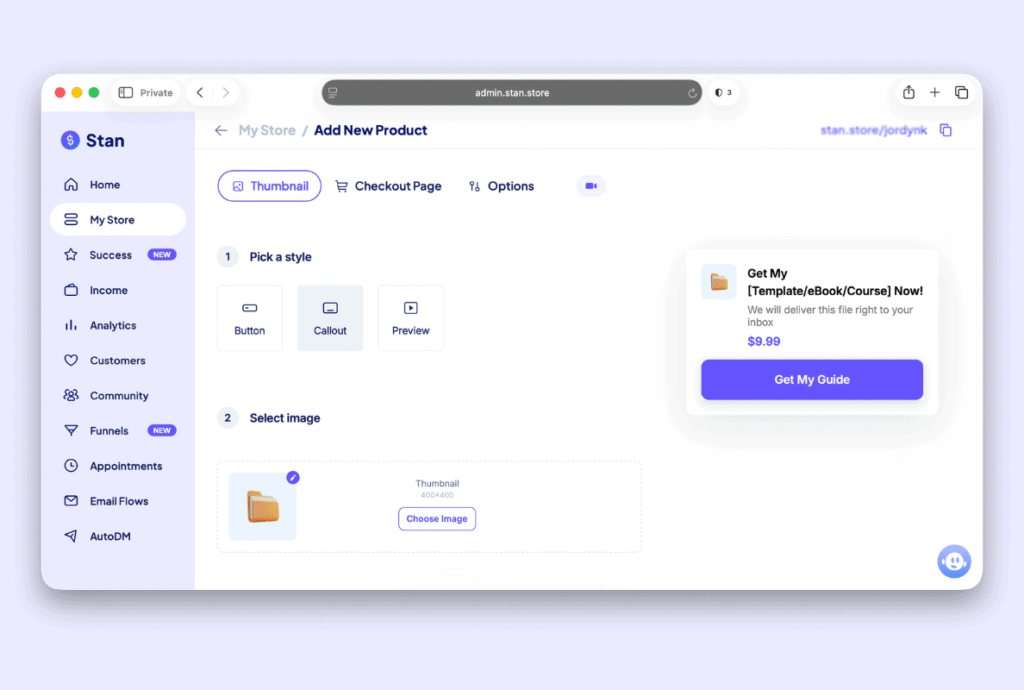
The first thing you’ll do is choose a thumbnail for your offer. This is how your product appears on your Stan Store to anyone visiting your page—and it’s what can entice them to click into your checkout page.
There are three styles to choose from: Button, Callout, and Preview.
🟢 Button keeps things compact. It’s a smaller display, which works well if you have a lot of products on your store and don’t want any one thing taking over the whole page.
📣 Callout is my personal favorite. It takes up more real estate, gives you space to write a fuller description, and makes your product pop. If this is the main offer you’re pushing right now, I’d recommend Callout.
👀 Preview also takes up extra space but focuses more on showing the file type itself—like a “ready to download” icon rather than your custom image and copy.
Once you’ve picked your style, select your image. You can pull something from our massive library of options, or—even better—use creative assets that are made specifically for this product, like a Canva mockup.
Finally, add your text. Your digital download’s title should feel captivating, your subtitle should give people a clear sense of what’s inside, and your button should be very action-oriented.
Once everything looks good, click Next.
Step 2: Build Your Checkout Page
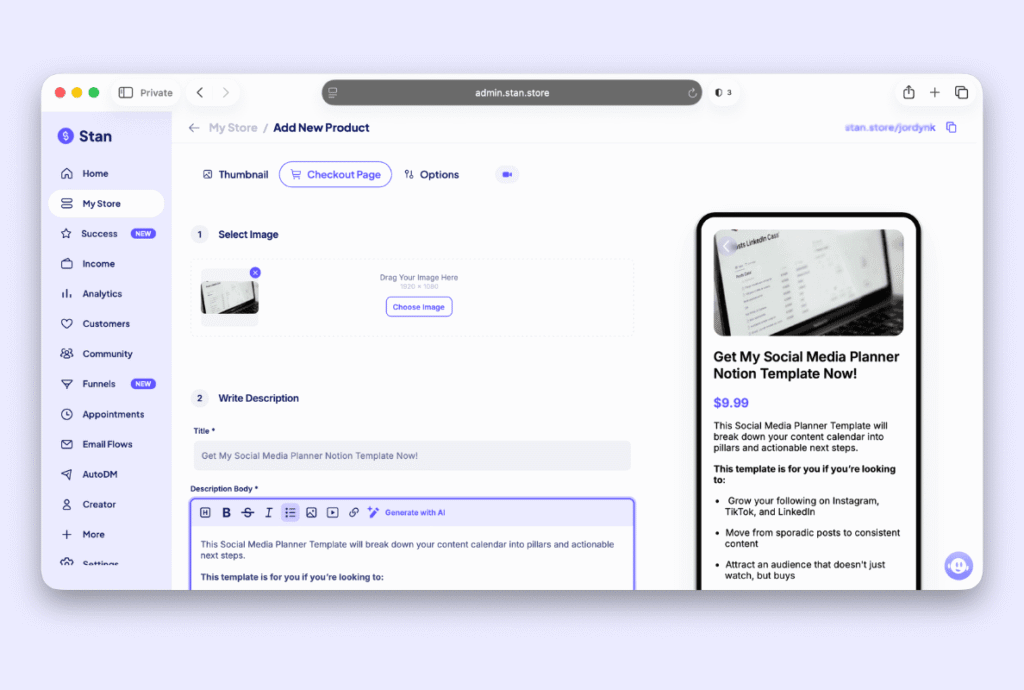
This is the most important step, so don’t rush this part. Your checkout page is where you close the sale, and where you have the most space to sell customers on your offer.

Write a Description That Converts
Choose a banner image that goes really well with your product. Then in the description section, lay out the value. Why does someone need this? What are they going to walk away with? What problem does it solve?
Your customers need to know why they’re buying this before they hand over their card number. The description is where you make that case.
Your copy should feel enticing and action-forward. And the call to action button? Make it all caps, lead with a verb, and feel urgent. That’s what gets people to “Buy now!”
Set Your Price
Once the marketing copy is locked in, set your price. Stan Store defaults to $9.99, but you can set whatever price makes sense for your product. Change it, watch it update in real time on the mobile preview, and move on to the next step.
Collect Customer Info
When someone buys from your Stan Store, their name and email are collected by default. But you can also add custom fields.
For example, if you want to ask your customers what their interests are, you can add that as an additional field and even mark it as Required so they can’t checkout without filling it in.
Pro Tip: Custom intake fields aren’t just about data—they’re about understanding your audience. What you learn from your customers here can directly shape your next offer or your messaging.
Upload Your Digital Product
At the bottom of this section, you’ll see a block to add your actual digital product. You have two options: redirect to a URL or upload a file directly.
If your product lives as a downloadable file, like a PDF, upload it here. If it’s in a Google Doc, a Notion page, or a Canva link—anything that lives on the web—drop the URL in here instead.
Either way, your customer will automatically get access the moment they purchase.
Step 3: Set Up Your Confirmation Email
We’re nearly finished, but before you hit Publish, make sure you do this:

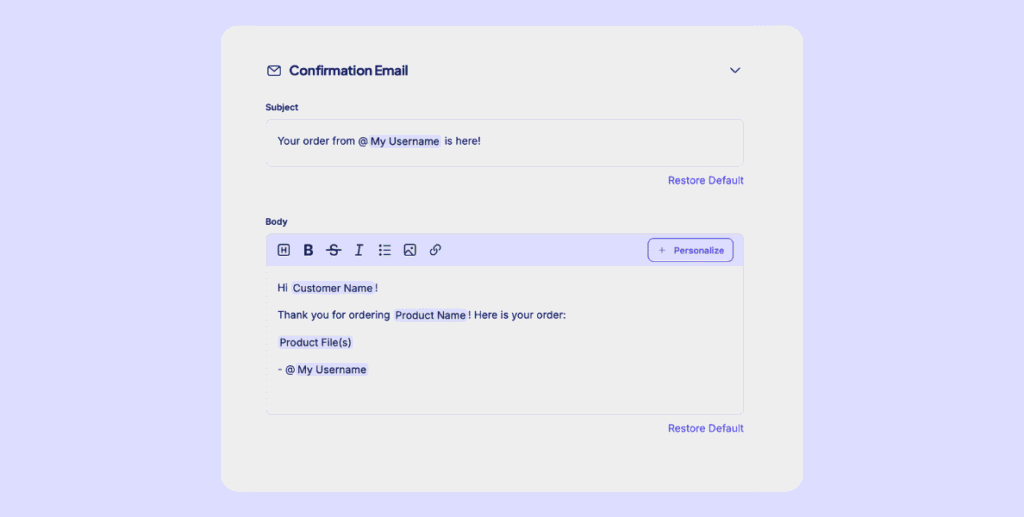
Go back to the top, click Options, and scroll down to Confirmation Email. This is the email your customer receives immediately after they purchase your digital goods. It’s the first thing they’re going to see from you post-purchase, so you’ll want to make sure it’s set up the way you want.
The default confirmation email template auto-populates with the important stuff: your username, the product name, the product file or link, and your customer’s name.
Anywhere you see a purple bubble in the subject line or body, that’s a personalization tag pulling live info. So when it says “Customer Name,” it’s actually going to say their name when they get it.
You can leave the default template as-is, or customize the copy to sound more like you. We have a whole other lesson dedicated to writing great confirmation email copy—check that out if you want to go deeper. But at minimum, make sure this email is live, and the product link is in there before you publish.
Once you’re happy with everything, scroll back and press Publish.
Step 4: Preview It From Your Customer’s Point of View
Before you start sharing this product everywhere, take 60 seconds to see what your customer is going to see.
Click on your storefront in the top right corner and navigate to the product you just published. Walk through it like a first-time customer would. The banner image, the title, the description, the checkout fields, the price—see if it all lands the way you intended.
From your customer’s point of view, here’s what happens when they buy: they hit your checkout page, fill in their info, pay, and immediately land on a thank-you page with direct access to whatever you put in the digital download section. They’ll also get a confirmation email with the product linked right there.
Cha-ching! Just like that, your digital product is set up and ready to start selling 💸
That’s How You Turn Your Expertise Into Income
You just launched your own digital product and checkout experience. That isn’t nothing—it’s everything.
A digital download is one of the simplest ways to start monetizing what you know because the barrier to entry is low and the ceiling is high.
So package your expertise, price it right, and let Stan Store handle the delivery. If you’re not sure what to create yet, check out Stan’s free webinar on how to create and sell digital products as a Creator for ideas on finding your unique angle.
And remember: your first digital download doesn’t have to be perfect. Start with what you know, collect feedback from your first buyers, and build from there.
Want more simple tips to grow your Creator business and earn faster? Stan’s Success tab has everything you need—with more lessons and tutorials from Professor T. Try it yourself with a 30-day free trial of Stan Store.
FAQ: Stan Store Digital Downloads
You can either upload a file directly to your Stan Store or drop in a URL. Files can be PDFs, guides, templates, and more. URLs can point to a Google Doc, a Notion page, a Canva link, or any public web-based resource.
Absolutely! You can set the price to $0 if you want to use your digital download as a free lead magnet to drive demand and grow your email list. It’s a great way to offer value upfront before introducing a paid product.
They’ll receive your digital download immediately. After purchasing, they’ll land on a thank-you page with direct access to whatever you uploaded or linked. They’ll also receive a confirmation email with the product link included.
Definitely. You can add custom fields in the Collect Info section—like interests, goals, or any other questions that help you better understand your buyer. For instance, if you create art and want to understand whether people who buy your digital download might be interested in becoming a client for your services, you can add qualifiers like “Are you interested in 1:1 coaching?”
Nope—digital downloads are available on all Stan Store plans. It’s one of the first product types every Creator should set up within the platform.