TL;DR
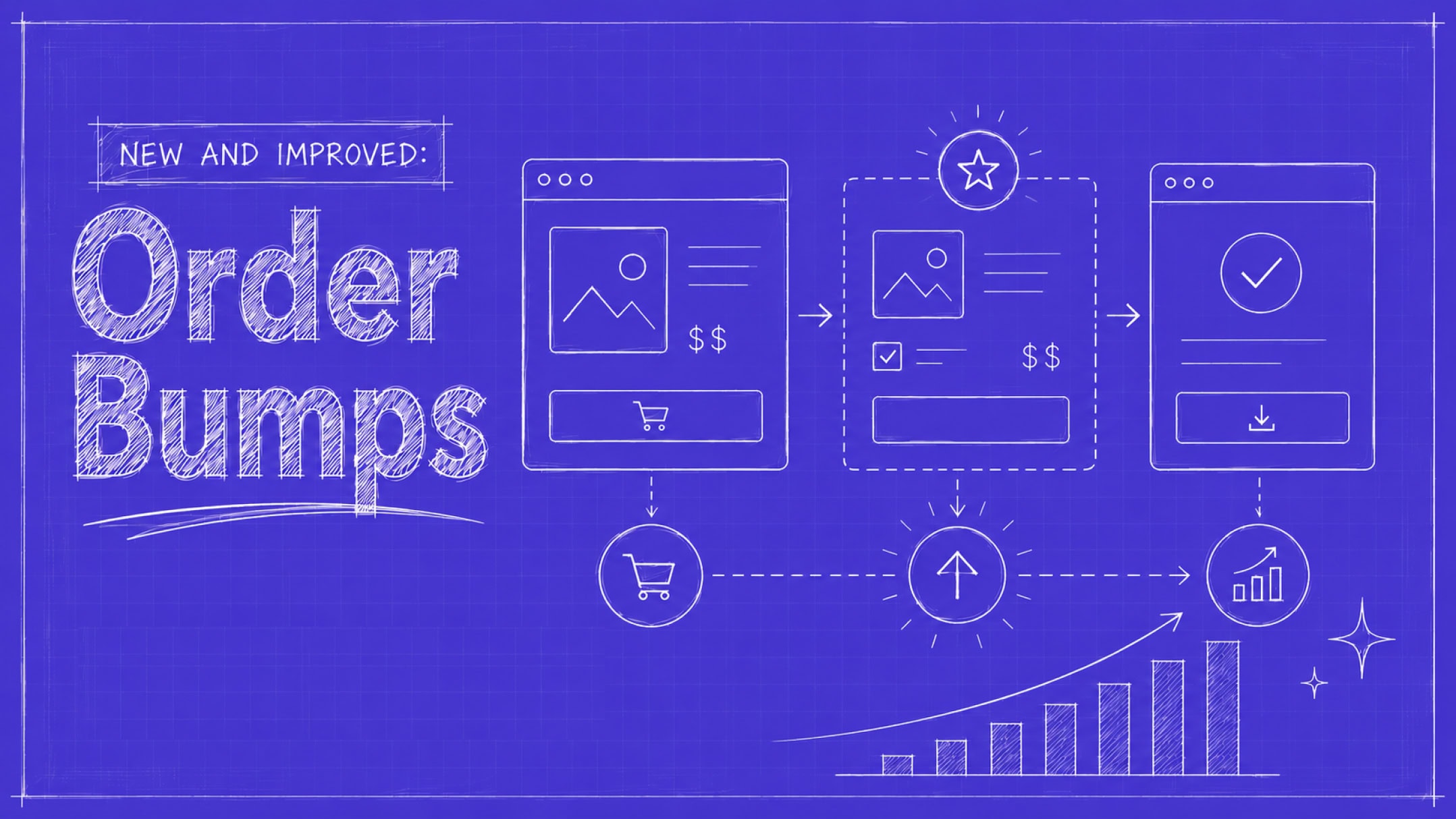
Order Bumps are one-click upsells that show up right at checkout—and one of the easiest ways to grow your average order value by over 35%. We just gave them an upgrade, so now you can tailor them to match your brand instead of settling for a one-size-fits-all look. Here’s what’s new, how to set one up in minutes, and three ways to use Order Bumps to earn more from every sale.
You’ve done it—you’ve got a customer at your checkout page, their card is out, and they’re just one click away from buying.
Many Creators stop here. They’re so focused on closing one sale and chasing the next customer that they forget to make the most of the one right in front of them.
But not you—you know better 😉
You know your customer is never more ready to spend than they are right now, mid-checkout. So why stop at one sale when you could turn it into a bigger one?
Order Bumps make upselling fast and easy. You’ve been able to add them to your products on Stan Store for a while. But now, you can customize every detail—from your design and headline to your description and colors.
What’s an Order Bump?
Order Bumps are a simple way to boost your sales by offering pre-purchase upsells at checkout.
They show up in your Stan Store as a checkbox on your product’s checkout page—giving customers the chance to add another product to their cart with one click.
It’s one of the easiest ways to grow your average order value (AOV). By giving your customers the option to add relevant last-minute offers, you can boost your AOV by over 35%.
Here’s why it works: Think about your last grocery run. Right before you checked out, you probably came across low-ticket items by the register—gum, candy, magazines. You might not have walked in planning to buy any, but once they’re right in front of you, it’s easier to make impulse purchases.
Order Bumps do the same thing for your Stan Store checkout.
How Stan Store Order Bumps Work
Stan’s Order Bump feature lets you add a pre-purchase upsell to your paid products in seconds, so you can earn more from every sale. And with this latest iteration, you can customize every aspect.
As a Creator, your brand is everything—and your Stan Store checkout should feel just as unique as you are. That’s why we’re giving you full creative freedom over your Order Bumps’ look and feel from now on.
Here’s what changed and how to set yours up.
Heads up! Order Bumps are only available on the Creator Pro plan. But don’t worry—we’re giving you a 30 day free trial to try it out before you decide whether to upgrade.
Order Bumps: What Changed (and What’s Coming)
Our first iteration of Order Bumps was functional. But our latest version gives you creative control over how your upsell looks and what it says—without any added complexity.
| Order Bumps V1 | Order Bumps V2 | |
| Design variants | ⚠️1 (Flashy) | ✅ 4 (Simple, Spotlight, Card, Flashy) |
| Designs that adapt to your Stan Store theme | ❌No | ✅ All designs adapt to your theme |
| Headline | ❌ Not customizable | ✅ Customizable |
| CTA | ❌ Not customizable | ✅ Customizable |
| Description field | ❌ Not customizable | ✅ Customizable |
| Thumbnail | ❌ Not customizable | ✅ Customizable (Card design only) |
| Two-column layout | ❌ No | ✅ Yes (Card design only) |
| Live preview | ❌ No | ✅ Yes—see exactly how it looks as you create it |
Stay tuned for more 🚀 Right now, you can only add one Order Bump per product. But this is a popular feature request, and it’s on our roadmap. Keep an eye on your inbox and our socials for more exciting Stan Store updates in the months ahead 👀

How to Add an Order Bump to a Product
Adding Order Bumps to your Stan Store offers only takes a few minutes. Here’s how to do it.
1. Log into Stan Store and head to the My Store tab. Then, click on the product you’d like to add an Order Bump to. Make sure it’s a paid product (not a freebie).
2. Select the Options tab, scroll down to the Order Bump section, and toggle Enable Order Bump on.
3. Choose the product you’d like to add (and make sure it’s a paid one!)
4. Make it yours. Choose a design, then customize the colors, headline, CTA, and description.
5. Hit Publish, and that’s it! Your Order Bump is live.
Need more help? Get our detailed step-by-step guide on how to set up and customize your Order Bumps.
Heads up! An Order Bump must be a Digital Download, Community, or Course product. And if the Order Bump is a Community or Course, it must be set as a one-time payment. Subscription products can’t be added as Order Bumps.
3 Ways to Use Order Bumps As a Creator
Order Bumps work best when they feel like a no-brainer. Curious how you can use them? Here are three ways you can encourage customers to add more to their checkout.
1. Upsell Them on Complementary Offers
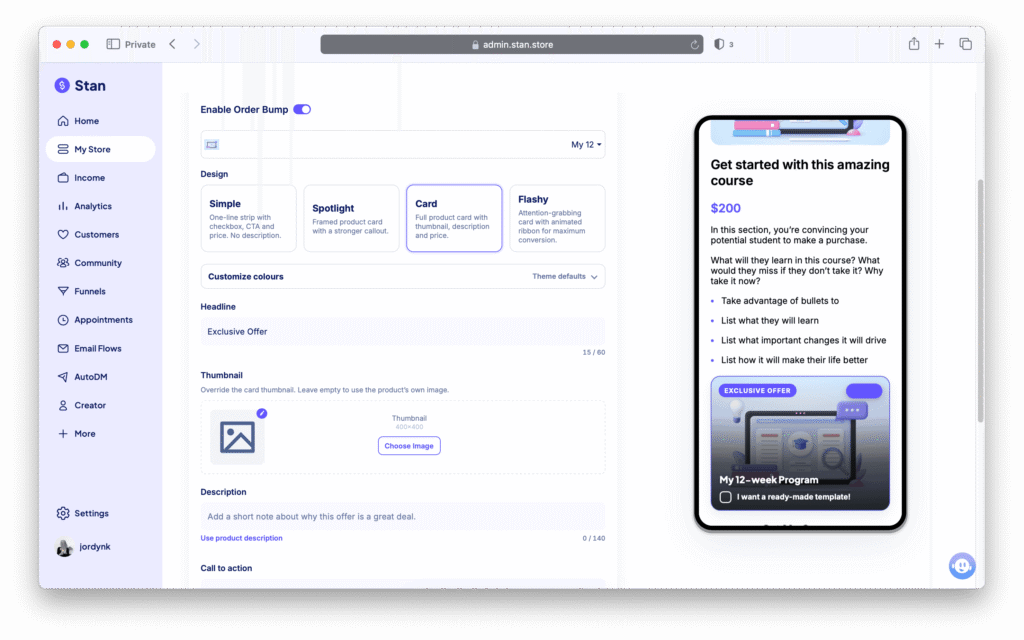
The easiest Order Bump to sell is one that completes the purchase your customer is already making. It should feel like an obvious next step—not a random pitch.

Selling a fitness program? Add a meal-prep guide. The program handles their training, and the guide takes care of their nutrition.
Selling a resume template? Offer a matching cover letter template. Both can help them land their next job.
When the upsell naturally fits with the main offer, customers are more likely to make add-on purchases without overthinking it.
2. Help Them Get Results Faster
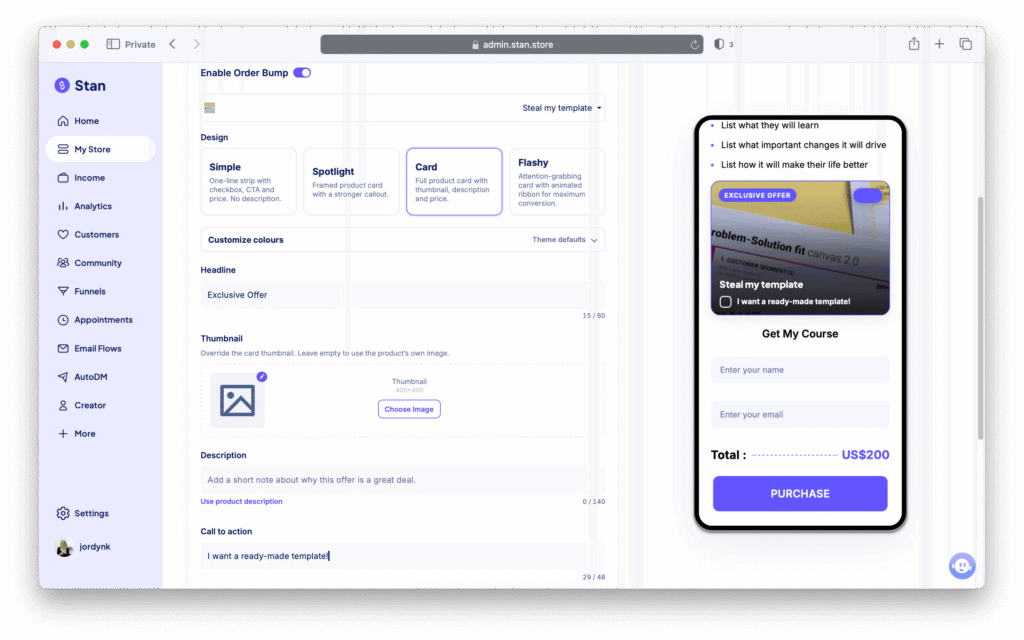
Sometimes customers don’t want to learn more—they want a shortcut. So if you’ve already sold someone on an outcome, you can add an Order Bump that saves them extra time or effort.
For instance, say you sell a course on using Notion as a productivity system. You can add a Notion template as a low-ticket Order Bump, so they can skip the setup and get straight to using it.
Or if you sell a downloadable guide, you can offer a checklist that turns what they learned into actionable next steps they can easily follow.
3. Give Them Community Access
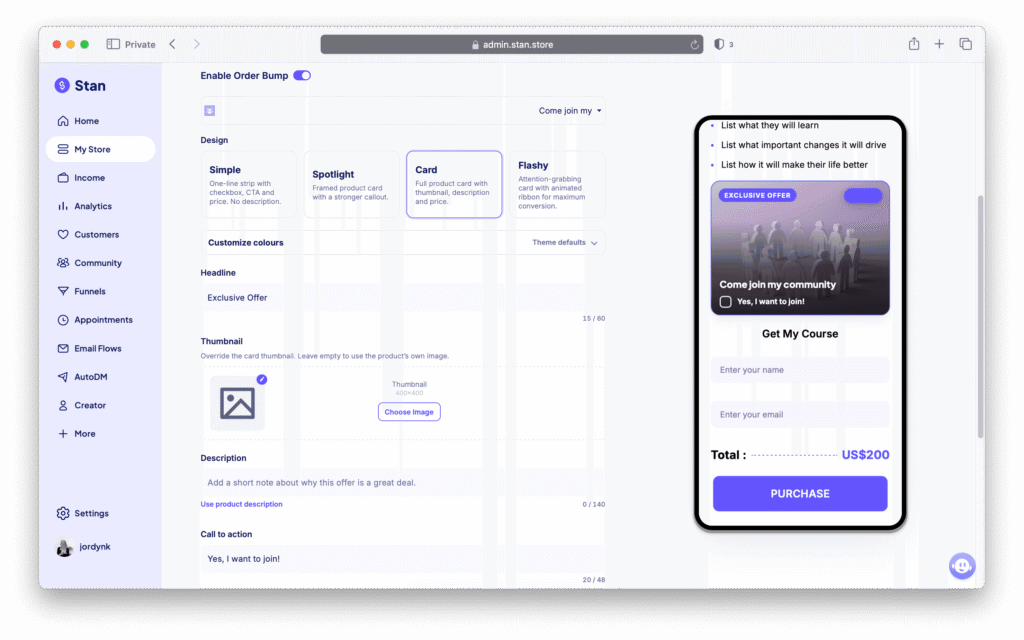
Your digital downloads and courses can deliver a ton of value on their own. But some customers want more than content. They want real-time support and people to go through it with—and they’ll happily pay more for it.
Many people are craving community, and you can monetize that need by including an add-on offer that gives customers a space to stay connected long after they’ve checked out.
For example, if you sell a self-paced course, you can include an Order Bump to join your paid community so they can connect with other students going through it.
Or if you sell a digital product, you can sell customers on community access where they can ask questions and get daily prompts to put what they’re learning into practice.
Start Earning More From Every Sale
One of the easiest ways to earn more is to maximize the order value of your existing customers instead of constantly hustling to find new ones. That’s what Order Bumps do.
And now, you have full creative freedom over how they look and what they say. With four designs, customizable copy, and a live preview, you can build an Order Bump that matches your brand and feels like a natural part of your checkout—not a tacked-on upsell.
Ready to see what Order Bumps can do for your business? Try them yourself with an exclusive 30-day free trial of Creator Pro.